Disclaimer
The purpose of this map is to display the geographic location of a variety of data sources frequently updated from local government and other agencies. Neither WTH Technology nor the agencies providing this data make any warranty concerning its accuracy or merchantability. And no part of it should be used as a legal description or document.
|
|
Think GIS
Quick Start Guide
|
Search
| Use the Search box on the tool bar to find anything on the map. Type an address, intersection, parcel number, owner name, or other text and press Enter. | 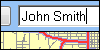 |
| Examples: |
123 N Main St
850 main st, ferdinand
Walnut St/3rd St
19-06-35-102-218.000-002
john smith
holiday lake
kellerville rd
mcdonalds
|
Click the  button to recall previous search results button to recall previous search results |
Click the  button to clear results window and map highlighting button to clear results window and map highlighting |
Click the  button for more search options button for more search options |
|
Identify
 Click on anything you see on the map to get detailed information. This includes any visible feature such as parcels, roads, water ways, and address points. Click on anything you see on the map to get detailed information. This includes any visible feature such as parcels, roads, water ways, and address points. | 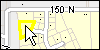 |
| This action uses the regular mouse pointer. It is not necessary to select any tool first. When selecting an area based feature, click just inside the boundary for best results. |
| Click the button to remove the highlighting. A large amount of highlighting will cause the map to pan slowly. |
|
Identify Areas
.png) Select this item from the Tools menu and point to any location on the map. Think GIS will then list for you all named boundaries that contain your point. This search is performed on all map layers including those that are not visible. Select this item from the Tools menu and point to any location on the map. Think GIS will then list for you all named boundaries that contain your point. This search is performed on all map layers including those that are not visible. |
|
Email
 Click the Email button to send someone a link that will open their map to view exactly what you are viewing; right down to the same highlighting and details displayed in left side panel. In many cases its better than printing. Click the Email button to send someone a link that will open their map to view exactly what you are viewing; right down to the same highlighting and details displayed in left side panel. In many cases its better than printing. |
|
Print
.png) Click the print button to view a print preview that you can customize with a title, notes, and other details Click the print button to view a print preview that you can customize with a title, notes, and other details |
|
Zoom and Pan
 | Draw zoom window |
 | Zoom out |
 | Recall previous map view |
 | Return to initial-home map view |
 | Use the regular mouse pointer to pan. Point, click, and drag |
 | Scroll the mouse wheel one click forward to zoom in. Scroll backwards to zoom out. |
|
Layers
Click the  button to control which layers are visible on the map. button to control which layers are visible on the map. | 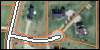 |
| Many basic layers such as roads and parcels are combined into a single 'base map' layer that automatically adjusts its level of detail as you zoom in and zoom out. Other layer, including aerial photography, must be manually turned on or off using the 'Layers' button. |
|
Big Picture
| An overview window in the lower left corner of the map indicates the portion of the greater map that you are viewing | 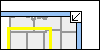 |
| Click the small arrow button to show or hide this window |
|
Measure a Distance
| Select 'Measure Distance' on the 'Tools' menuClick on the map where you want to start measuringClick one or more additional pointsClick 'Done' when finishedYou can zoom and pan while measuring for better accuracy | 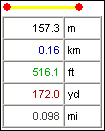 |
|
Measure an Area
| Select 'Measure Area' on the 'Tools' menuClick on a point at the edge of the area to be measuredClick additional points tracing the perimeter of the areaClick 'Done' when finishedThink GIS will automatically connect your last point to the starting point | 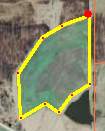 |
|
Get Coordinates
| Select 'Get Coordinates' on the 'Tools' menuClick on a point anywhere on the mapThink GIS then displays the Latitude/Longitude coordinates for this location | 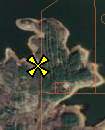 |
|
|
Additional Help
If you have questions about this or other GIS related products and services offered by WTH Technology, Inc., visit our web site or give us a call.
www.wthgis.com
888-CALL-WTH
888-225-5984

|